


1. Driver registration & subscription
To accept trips you need an active driver subscription. Everything starts from the Click Taxi Driver page.
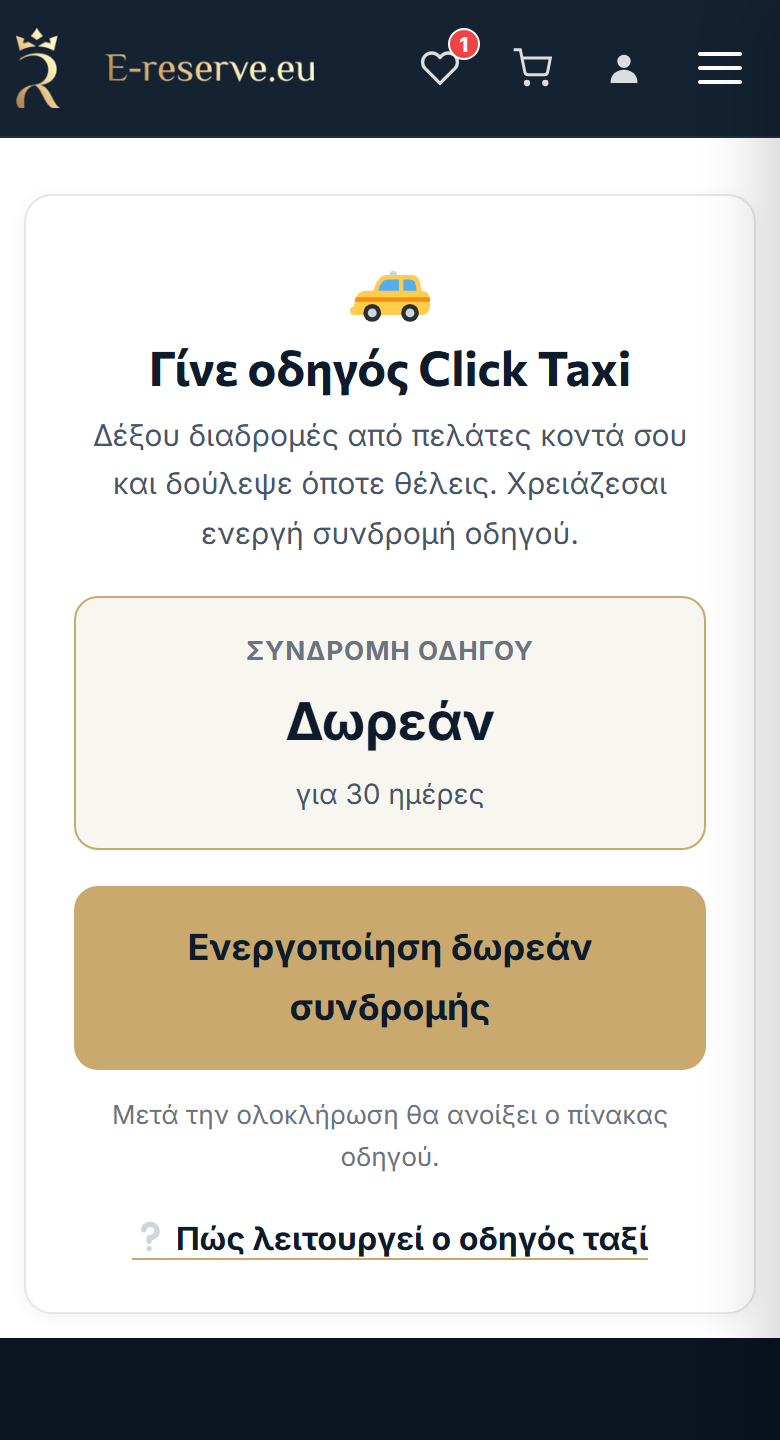
- If you do not have an account: press "I don't have an account — Register" (it brings you back to /driver/ afterwards).
- If you do, sign in.
- On the "Become a Click Taxi driver" card you see the subscription price and for how many days it is valid (e.g. 10 € for 30 days — or "Free" if the platform has set it that way).
- Press "Continue to checkout" (or "Activate free subscription"). The subscription goes into the checkout as a product and you pay normally.
- As soon as payment is completed, your account becomes a Click Taxi Driver and the driver console opens. You see "You are now a Click Taxi driver! 🚕".
2. Signing in to the driver console
After the subscription, the Click Taxi Driver page shows the driver console. Everything is done from here.
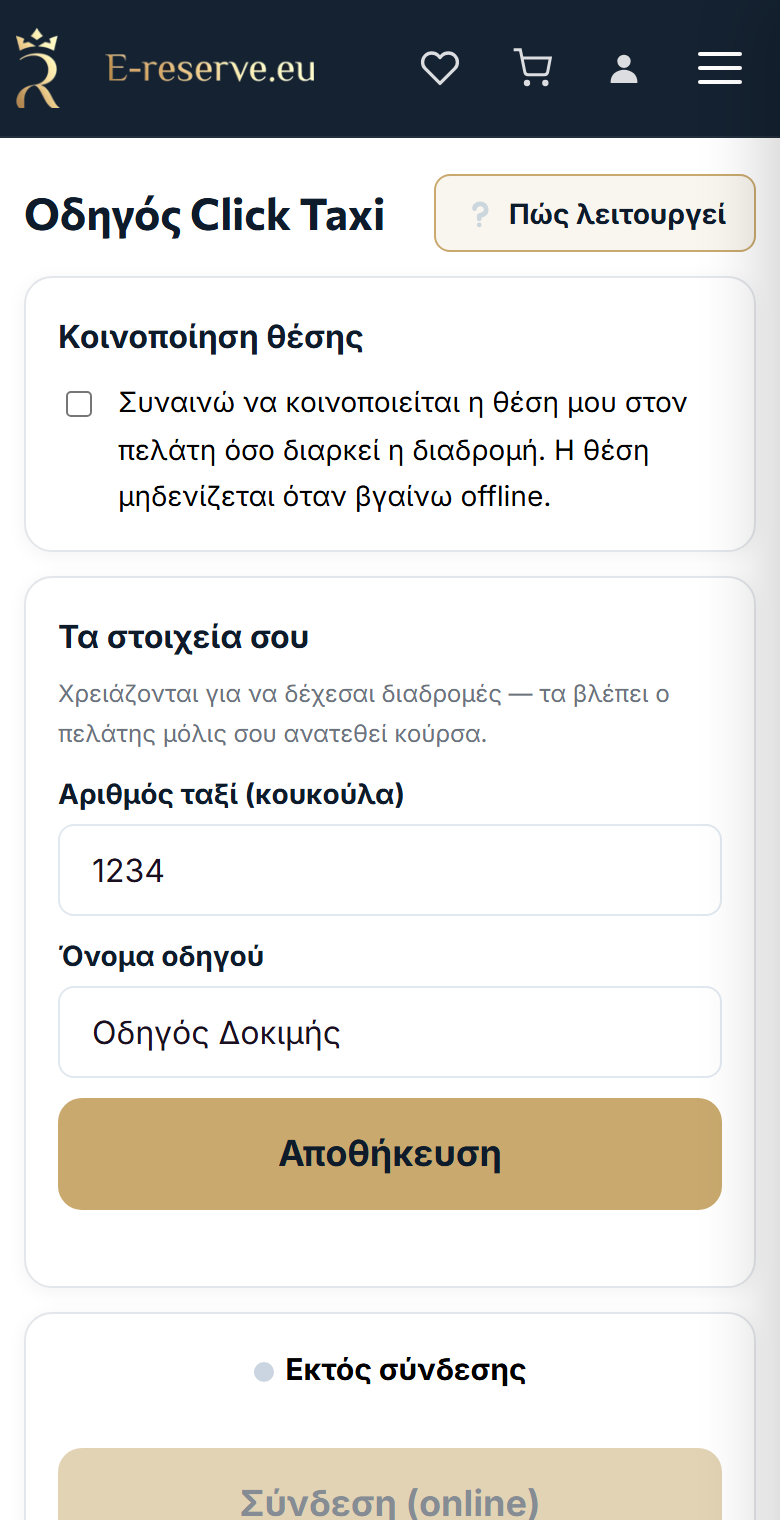
3. Details & location permission
Before you go online you need two things:
3.1 Your details (required)
- Taxi number (roof) — e.g. 1234.
- Driver name.
Press "Save". Without these two you cannot go available (the customer sees them as soon as you accept).
3.2 Location consent (required)
On the "Location sharing" card, tick: "I consent to sharing my location with the customer for the duration of the trip. My location is cleared when I go offline."
4. How I go available (online)
- Press "🔊 Test sound" to set the volume — this way you will hear new trips.
- Press "Go online". The status becomes "Online — available".
- The screen stays on while you are online (see "💡 The screen stays on").
To stop, press "Go offline"; your location is cleared.
5. How a trip comes in and how I accept it
- When there is a customer near you, a "New trip" card appears with "From:", "To:", distance and (if available) an estimate.
- The phone rings and vibrates, and a countdown runs (default ~20 seconds).
- Press "Accept" to take it or "Decline". There is no automatic acceptance — if you do not press "Accept" within the time, the offer is lost.
6. On the trip: "I have arrived" & completion
- After accepting you see the customer's name, the "From:"/"To:" addresses, a "📞 Customer" link and "🧭 Navigate" (opens Google Maps — first to the pickup, then to the destination).
- When you reach the pickup, press "I have arrived" — the customer is notified (they see "Your driver has arrived").
- At the end press "Complete trip".
7. Cancelling a trip
If needed, press "Cancel trip" — you are released and the customer is informed. Use it only when necessary.
8. Common problems
I cannot go online
Check: (a) that the subscription is active ("Your subscription has expired" → Renew), (b) that you have filled in the taxi number + name, (c) that you ticked the location consent.
I do not hear the new trips
Press "🔔 Enable sound" and "🔊 Test sound". Keep the screen on while you are online.
The customer does not see my location
Grant location permission. Inside the app, enable location for e-reserve from your phone settings (see section 3.2).
I missed an offer
Offers have a limited acceptance time. Stay online with the sound active so you can catch them in time.
I am a passenger
See the Passenger Guide.
Ready to work?
Open the driver console, go online and accept trips.
🚕 Driver console Passenger guide →
