


1. What Click Taxi is
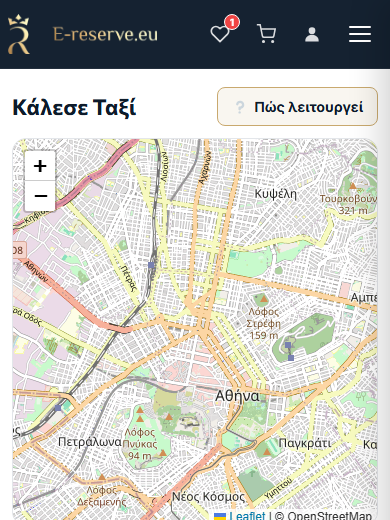
Click Taxi is the e-reserve taxi-hailing service. You request a taxi from the Call a Taxi page (or from the "Call a Taxi" card on the homepage), the system looks for an available driver near you, and once someone accepts you see their position live on the map until they arrive.
- You can book with an account or as a guest (no registration).
- Payment is made to the driver — the final amount is set by the vehicle taximeter. The price on the site is only an estimate.
- You do not need to install anything; it works through your mobile browser and through the e-reserve app.
2. How I order a taxi
2.1 With an account
- Go to the Call a Taxi страница.
- Your phone is already filled in from your account (you can change it).
- Fill in Pickup (required) and, optionally, Destination.
- Пресса "Request a taxi".
2.2 As a guest (no account)
The same page opens without signing in too. In addition you will see:
- A "Your name" field (the driver sees it as soon as they accept).
- A Mobile phone field with a country selector (default +30).
- A short booking code (e.g. "Code: 4F7K2P") — keep it; the order "remembers" your phone on this device.
3. How I enter the address
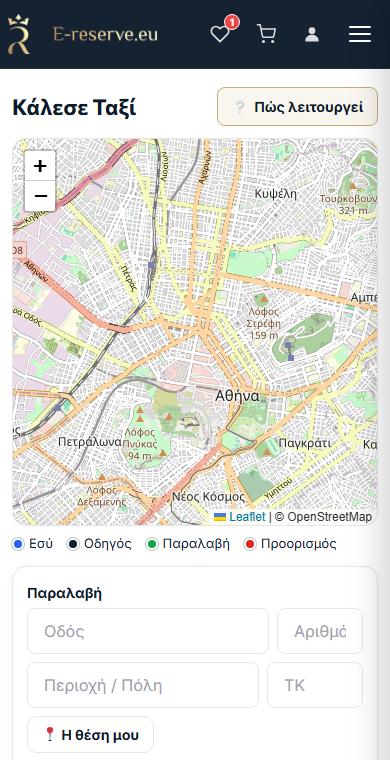
There are two groups of fields — Pickup (required) and Destination (optional). Each group has separate fields:
- Street — type and pick from the suggestions that appear.
- Number, Area / City, Postcode (optional).
Three ways to set the point:
- Type the street and pick from the suggestions (the suggestions are based on your real location for greater accuracy).
- Tap on the map to drop the pin — you can also drag it.
- "📍 My location" — automatically sets the pickup point to your current location.
Below the map there is a color key: You (blue), Driver (dark blue), Pickup (green), Destination (red).
4. Fare estimate — what it means
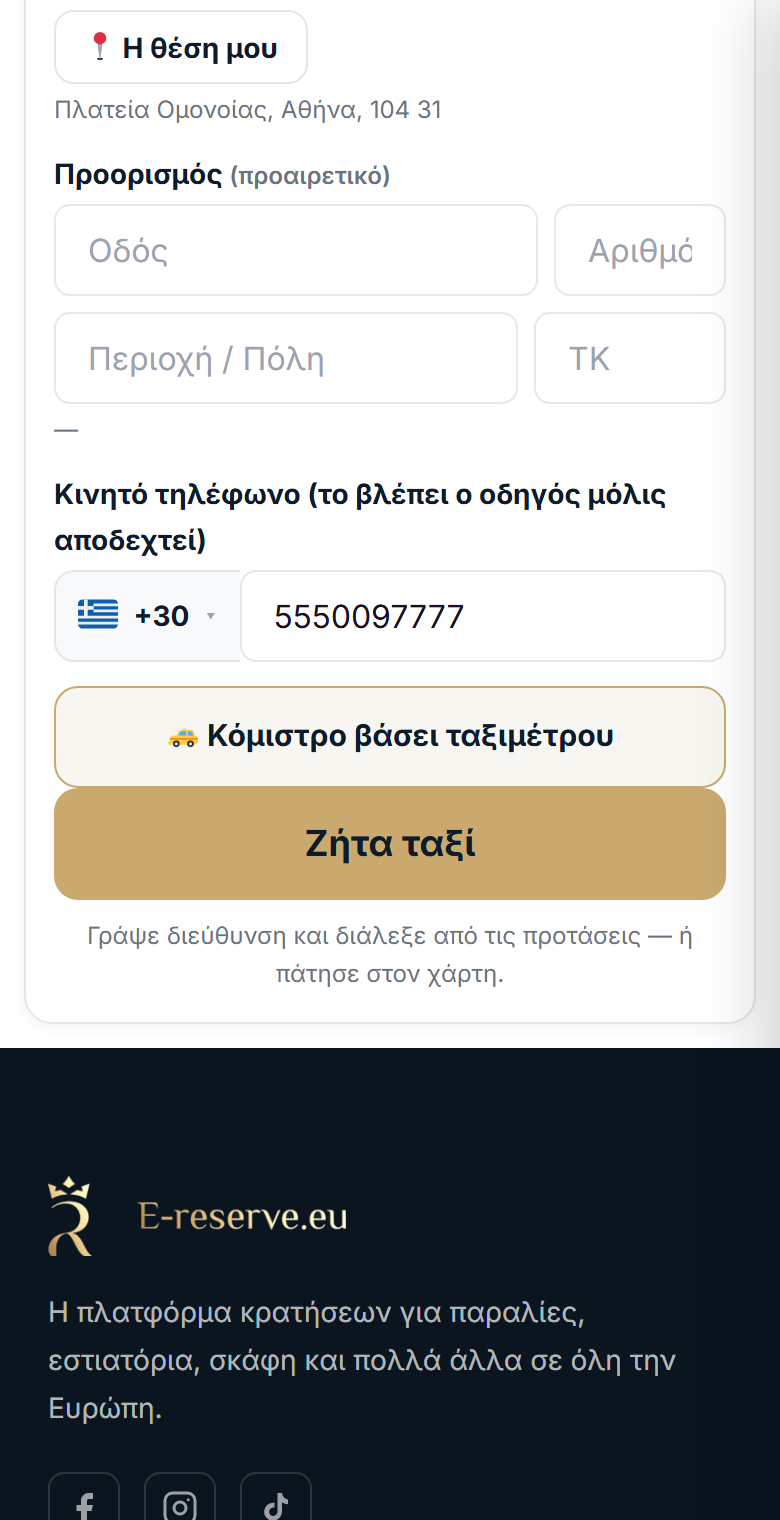
- When you set both Pickup and Destination, an "Estimate" box appears with an amount.
- It is indicative: "The final amount is set by the vehicle taximeter."
- Если вы do not add a destination, instead of an amount you see "🚕 Fare by taximeter".
- In some areas no estimate may appear at all — the order works normally; you pay by the taximeter.
5. After the order
5.1 Waiting for the driver
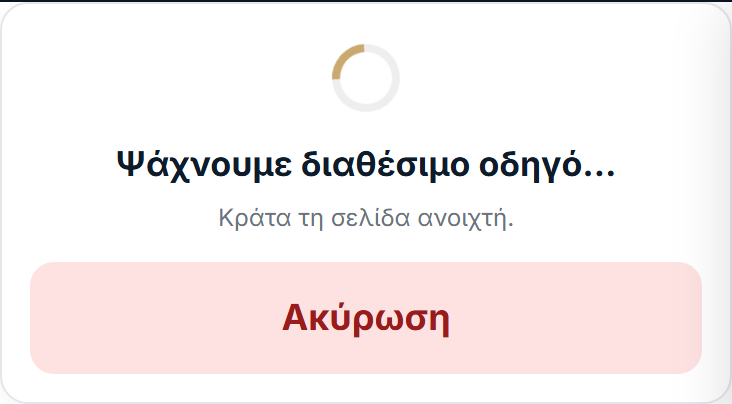
You see "Looking for an available driver…" with the message "Keep the page open." (and your code if you are a guest). There is a "Cancel" button.
5.2 The driver is coming — live position
- As soon as someone accepts, the status becomes "The driver is on the way".
- You see the driver's name, который taxi number (roof), the vehicle, and a "📞 Call the driver" link.
- The driver's position updates live on the map as they get closer.
5.3 "I have arrived"
When the driver arrives, a green "🚕 Your driver has arrived!" appears, the phone vibrates and a short sound plays.
5.4 If no driver is found
You see "No available driver was found. Try again shortly." with a "New request" button.
6. Cancellation
- While a driver is being searched for (or even after one takes the trip) you can press "Cancel" — the form returns for a new request.
- If the driver cancels, you see "The driver cancelled the trip" and you can request again.
- When the trip is completed: "The trip is complete. Thank you!"
7. Location on mobile & inside the app
For "📍 My location" and for correct centering of the map, the browser asks for location permission. Choose "Allow".
- Если вы deny it: you see "Location permission was not granted — enable it from your browser settings or type the address." You can always type the address or tap on the map.
- Внутри приложения e-reserve (Android): if location does not work, enable it for the app from Настройки → Приложения → e-reserve → Разрешения → «Местоположение», and try again.
8. FAQ / what I do if something does not work
No suggestions appear when I type a street
Probably an ad-blocker/VPN/network filter. Disable them for e-reserve.eu or set the point by tapping on the map.
It cannot find my location
Grant location permission (see section 7) or type the address. Inside the app, turn on location from your phone settings.
No driver was found
There may not be one available at that moment. Press "New request" in a little while.
How much do I pay?
The final amount is shown by the таксиметр. The estimate on the site is only indicative.
I am a taxi driver
Ready to call a taxi?
Open the page and request a taxi in a few seconds.
🚕 Call a Taxi I am a driver →
